Features
Every screen, explained
The real KairoWork interface, shown with sample data. What each screen shows, who sees it and what you can do there.
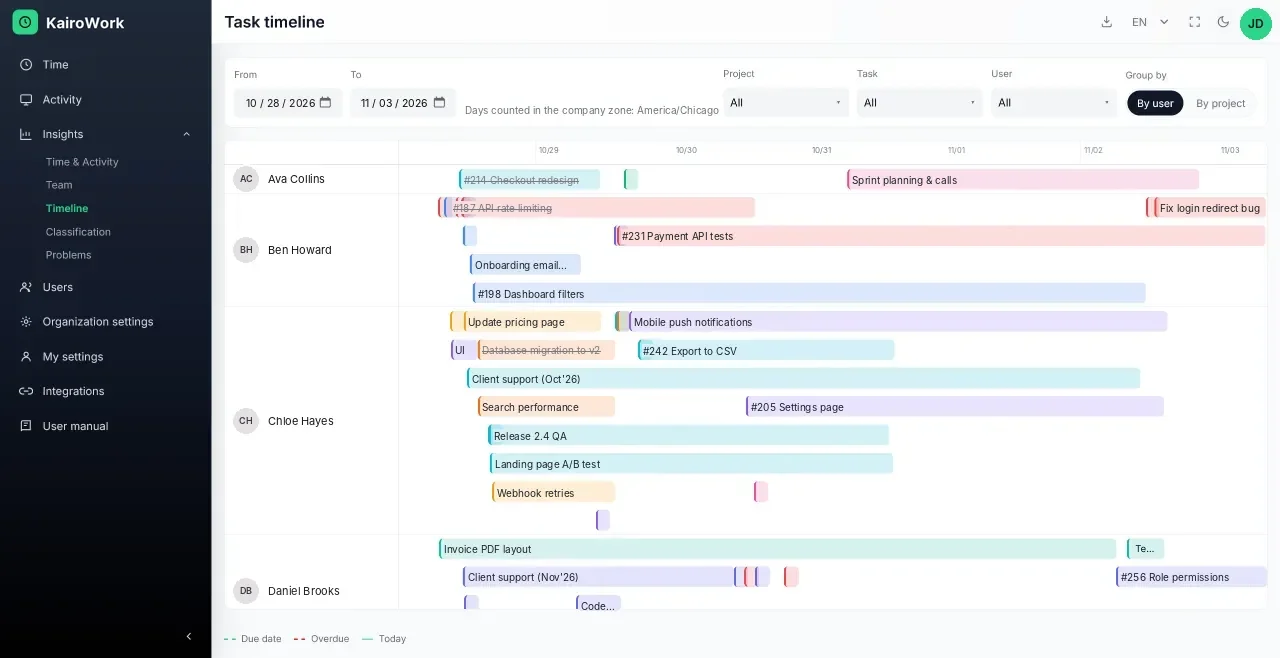
Desktop agent
Time is recorded where the work happens
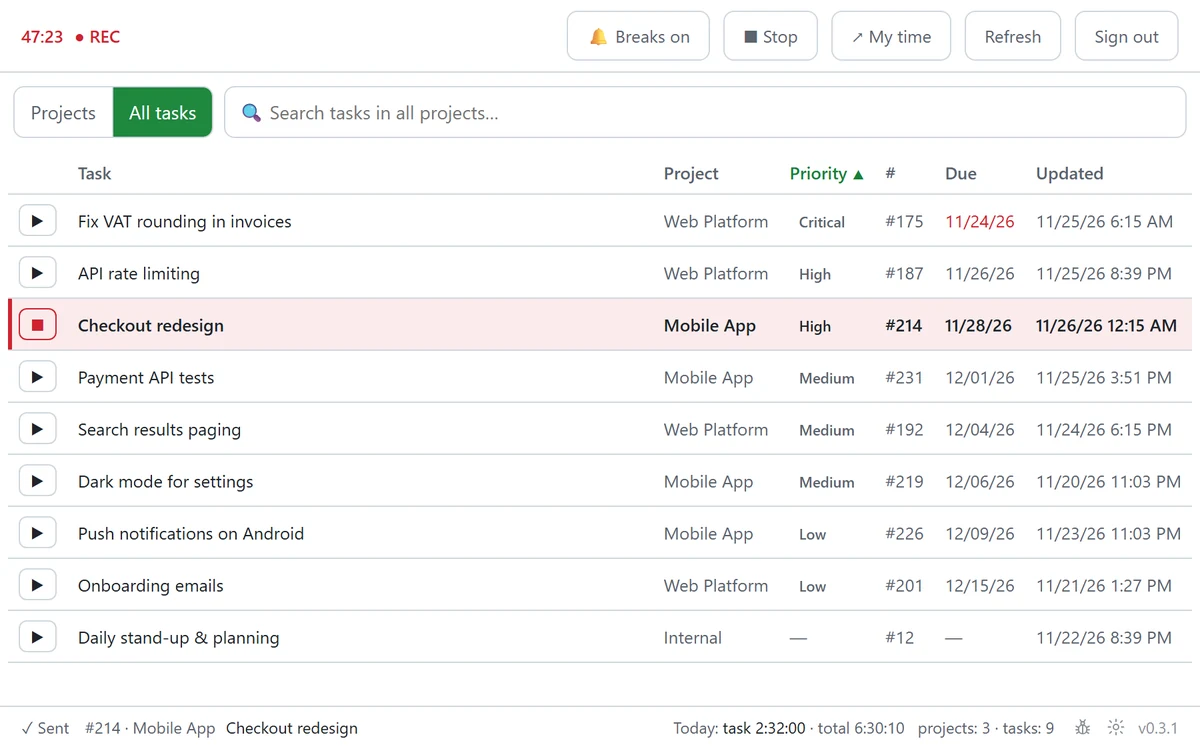
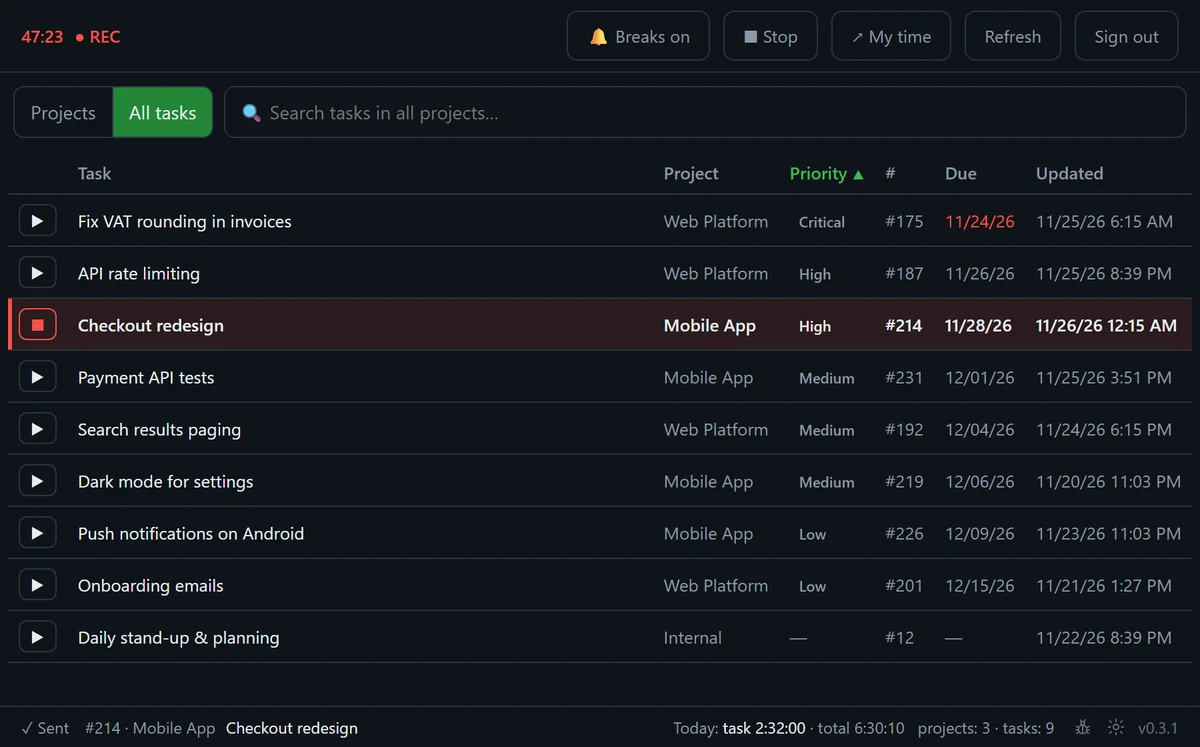
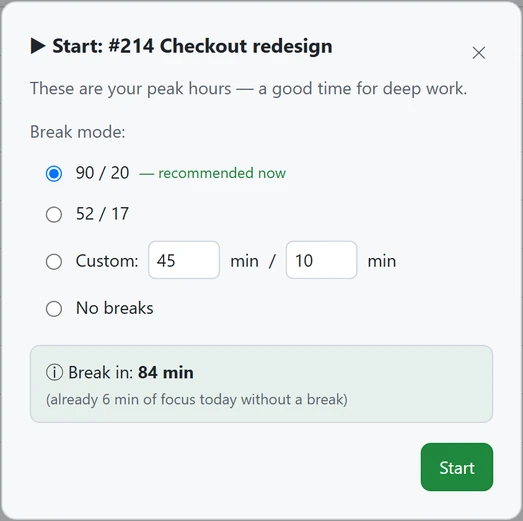
- Lives in the tray on Windows, macOS and Linux. Pick an issue — tracking starts; click again — it stops.
- Records minutes, mouse and keyboard counters, periodic screenshots and — if your policy allows — app names and site addresses.
- Never records the text you type, screen video or the webcam, and never blocks apps.
- Idle time is not counted; a long idle stops the session. No internet — it keeps a local queue and sends it later.
- Asks for consent once, on the first launch. Updates itself.
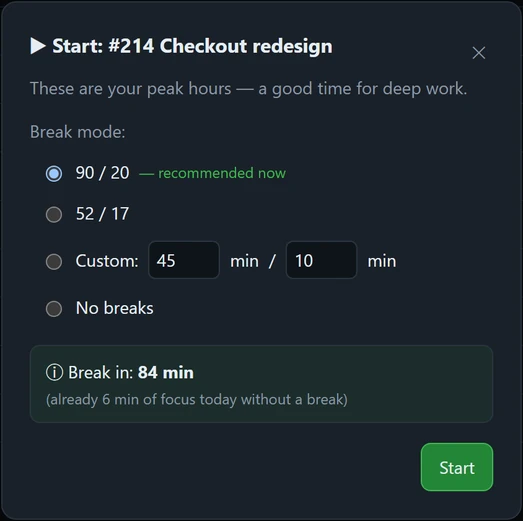
Team
Everyone's day on one screen
- A strip for each employee: bar height is the activity of that moment, gray blocks are manual time.
- Task system metrics next to it — issues assigned, in progress and done.
- The day total per person and for the team.
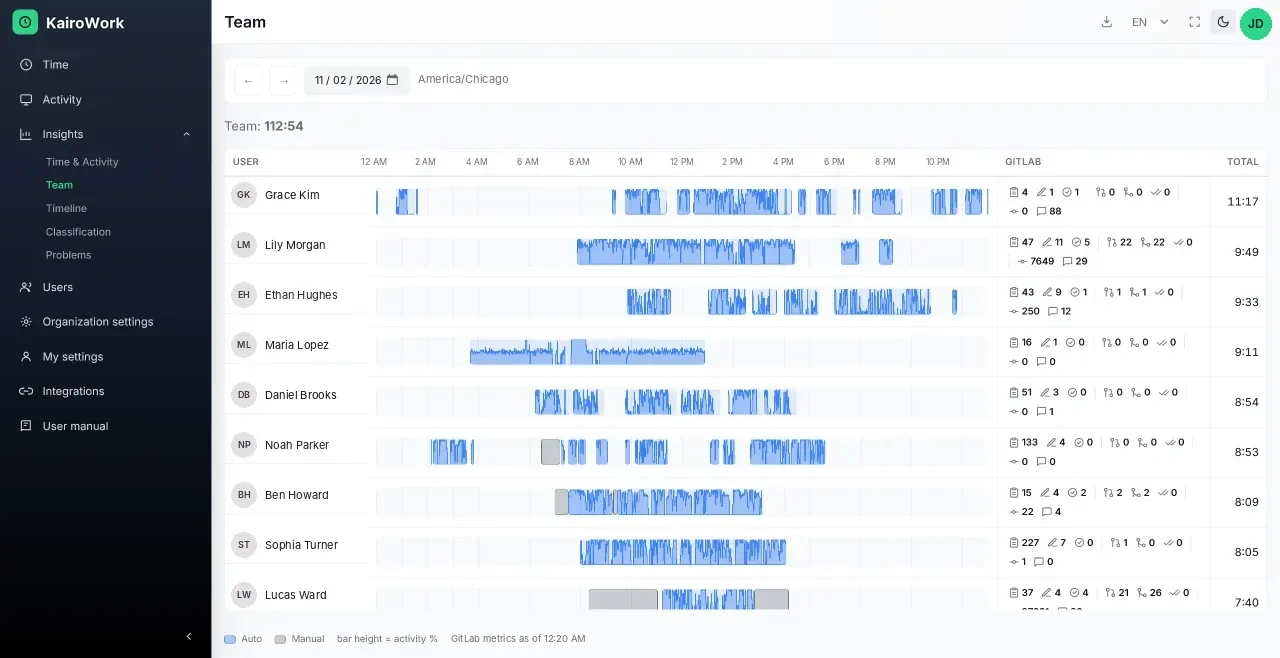
Activity feed
What happened, every 10 minutes
- The day grouped by hour, a card per 10-minute interval: project, issue, screenshot, activity percent.
- Open a card to see the apps and sites of that interval.
- Switch between "every 10 minutes" and "all screenshots"; screenshots can be blurred by policy.
- Activity shows input density, not value — reading and thinking legitimately score low.
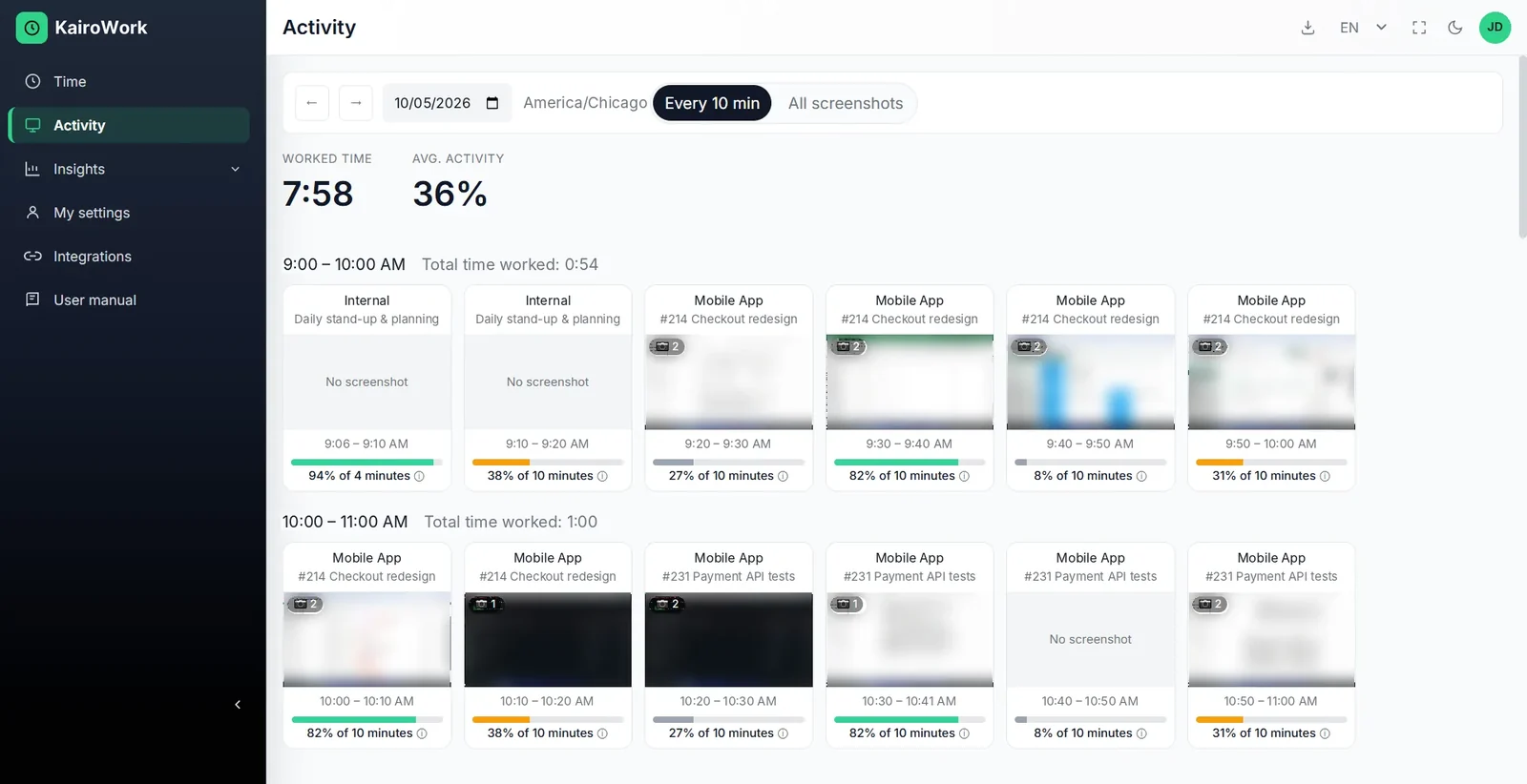
Timeline
Who worked on what, and when
- Issues for a period on a time scale, grouped by person or by project.
- Due dates shown, overdue issues flagged.
- Click an issue for details and a link to it in your task system.
Productivity
Productive, neutral or unproductive — by your rules
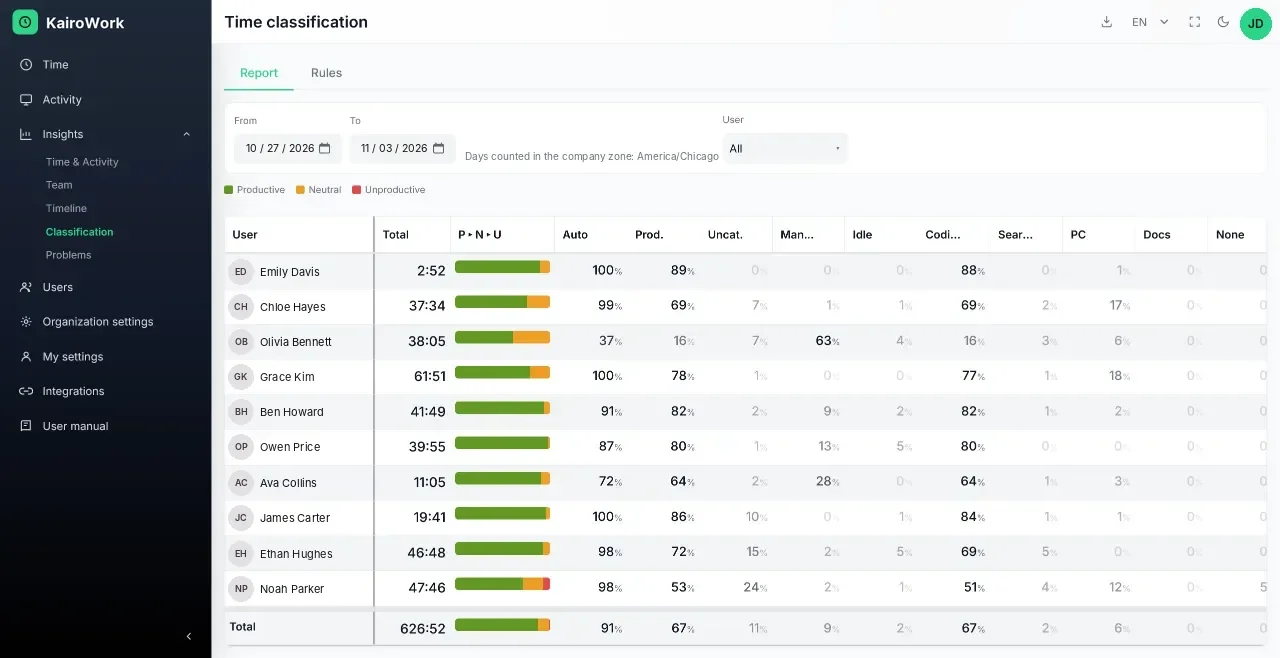
- Rules match an app or address to a type; the report splits the period's time by type and category.
- A separate list shows what is still uncategorized — add a rule right from there.
- Seen by admins and viewers only.
Anomalies
Problems surface by themselves
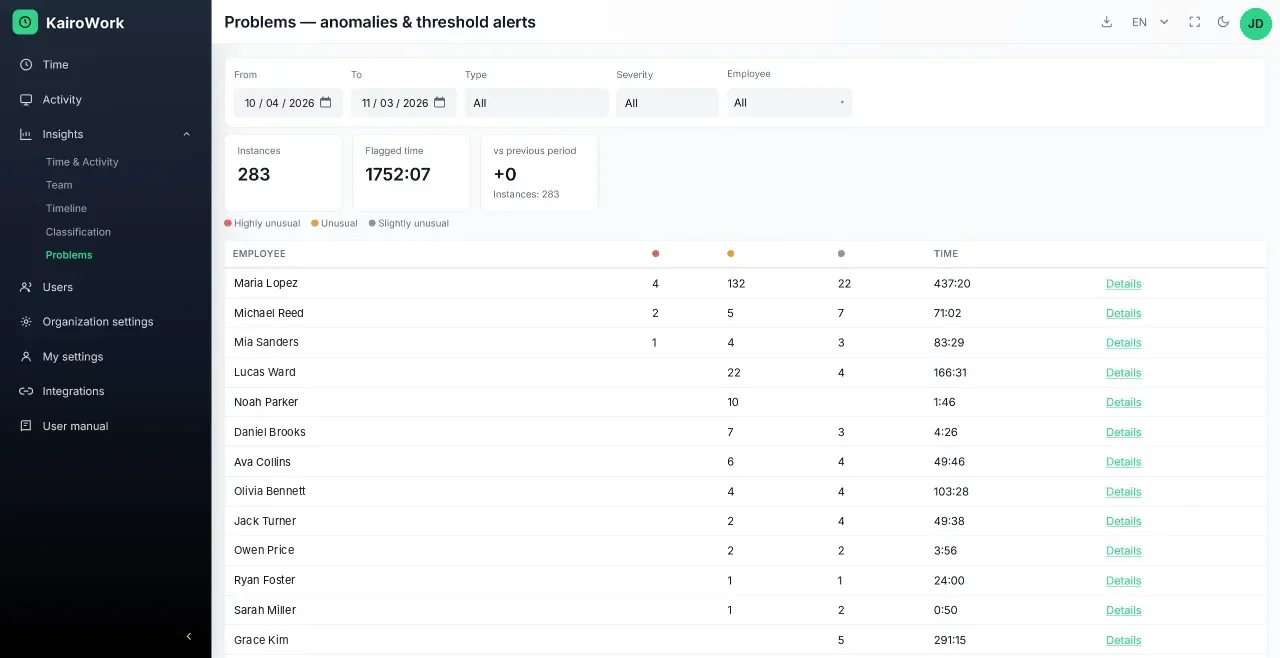
- Mouse-only activity, no breaks, overwork, suspicious apps, missed hour targets.
- By employee, type and severity, compared with the previous period.
- Open an incident, check it and mark it reviewed. Admins only.
Time entries
Every tracked interval, editable within the month
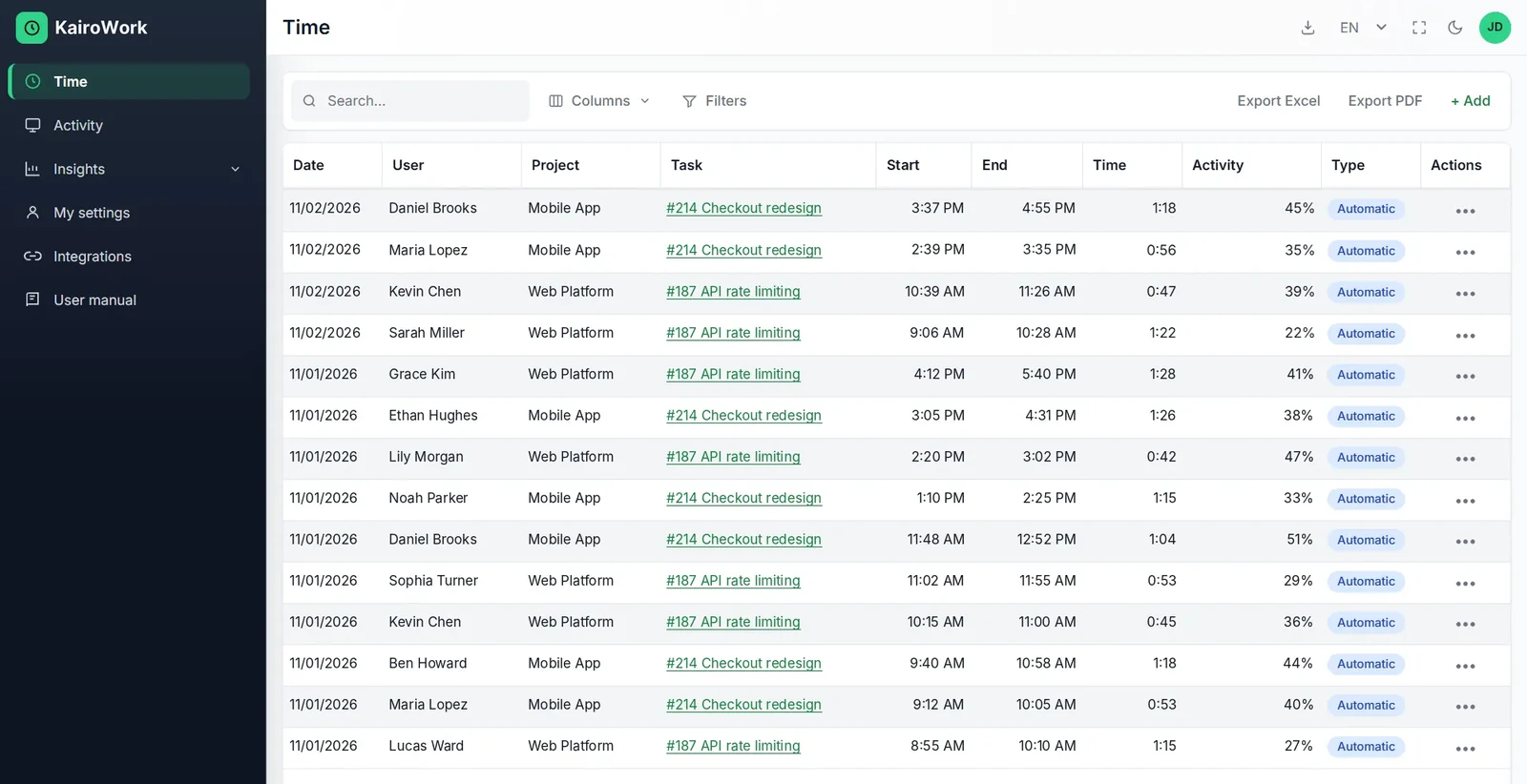
- Filter by period, project, issue and person; the link keeps the filters — send it to a colleague.
- Export to Excel (with an hours column and totals) or a PDF report.
- Add manual time with a reason; overlaps with tracked time are checked.
- Move a segment to another issue — its screenshots and activity move too. Closed months stay closed.
Users & roles
Three roles, clear boundaries
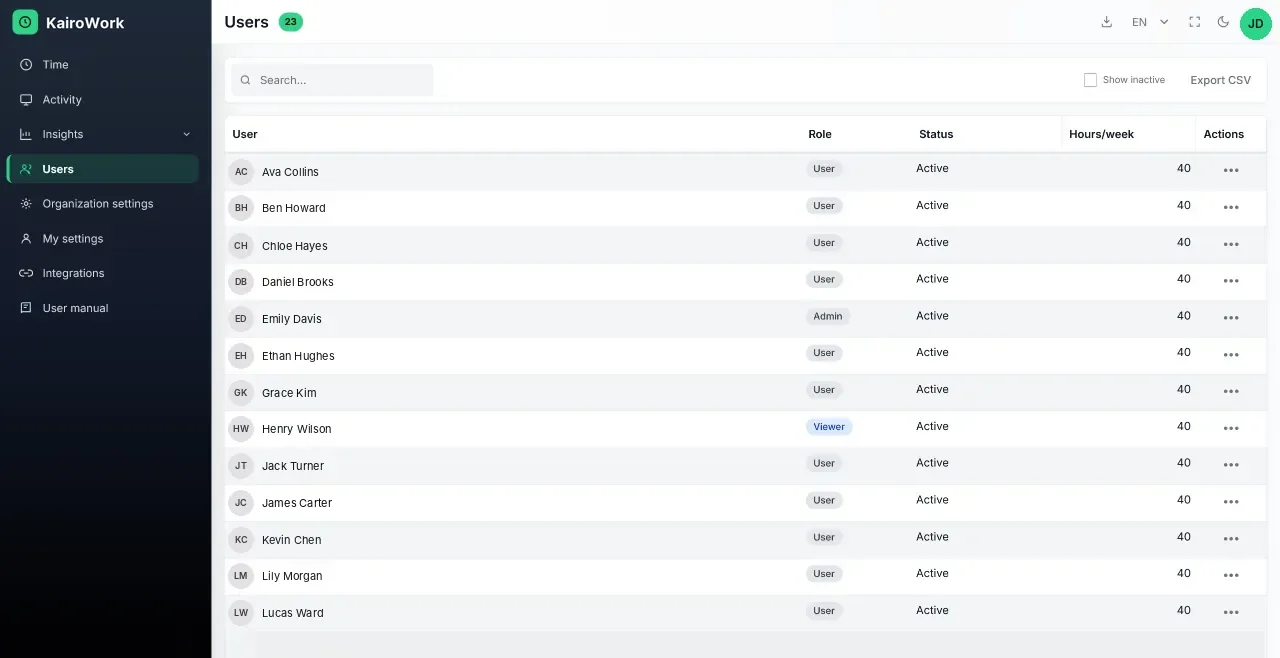
- User — sees only their own time and activity.
- Viewer — sees the people on their projects, edits nothing.
- Admin — sees everyone, manages people and settings.
- Weekly hour targets, a personal tracking policy, linked devices. People who leave are deactivated, not deleted — their time stays in reports.
Tracking policy
You decide what is captured
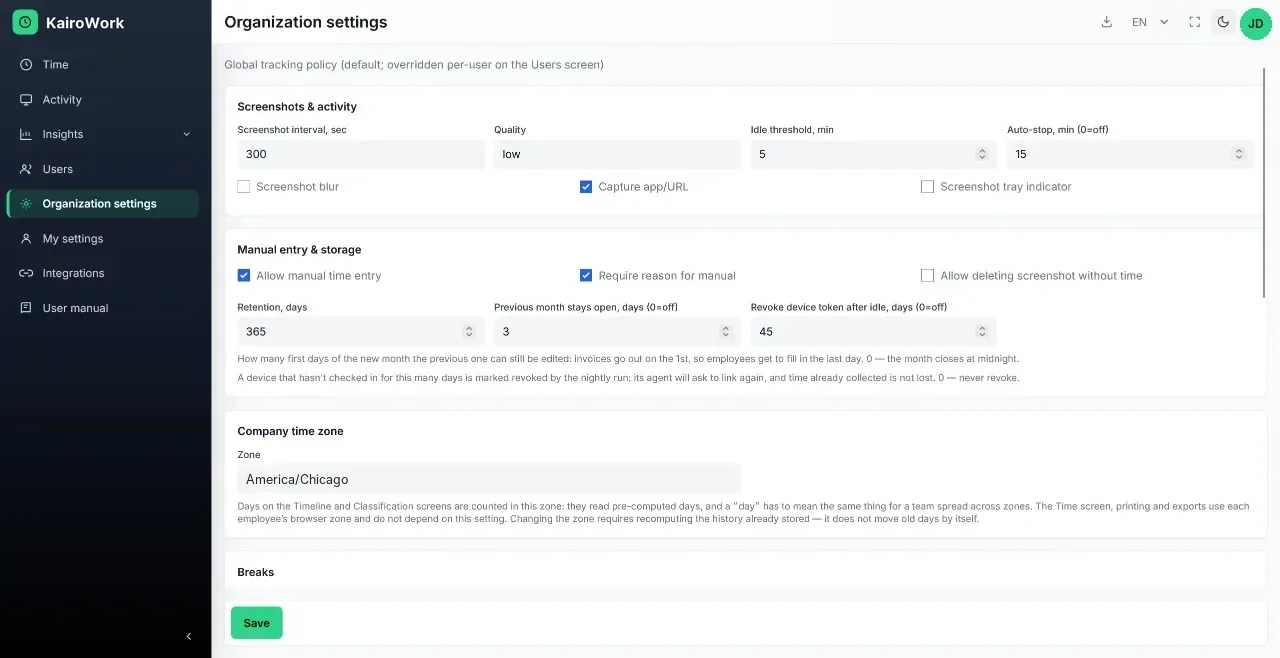
- Screenshot interval, quality and blur; app and URL capture; a tray indicator or notification for each screenshot.
- Idle threshold and auto-stop; manual time allowed or not, with or without a reason.
- Retention of screenshots, when the previous month closes, the company time zone, breaks.
- One policy for the company, overridden per person when needed. The agent applies it silently.